OTA firmware upgrade
Firmware upgrades happen entirely from the Visio Companion app, in two steps: download the firmware to your phone from the cloud, then push it to the device.
Step 1 — Download the firmware to your phone
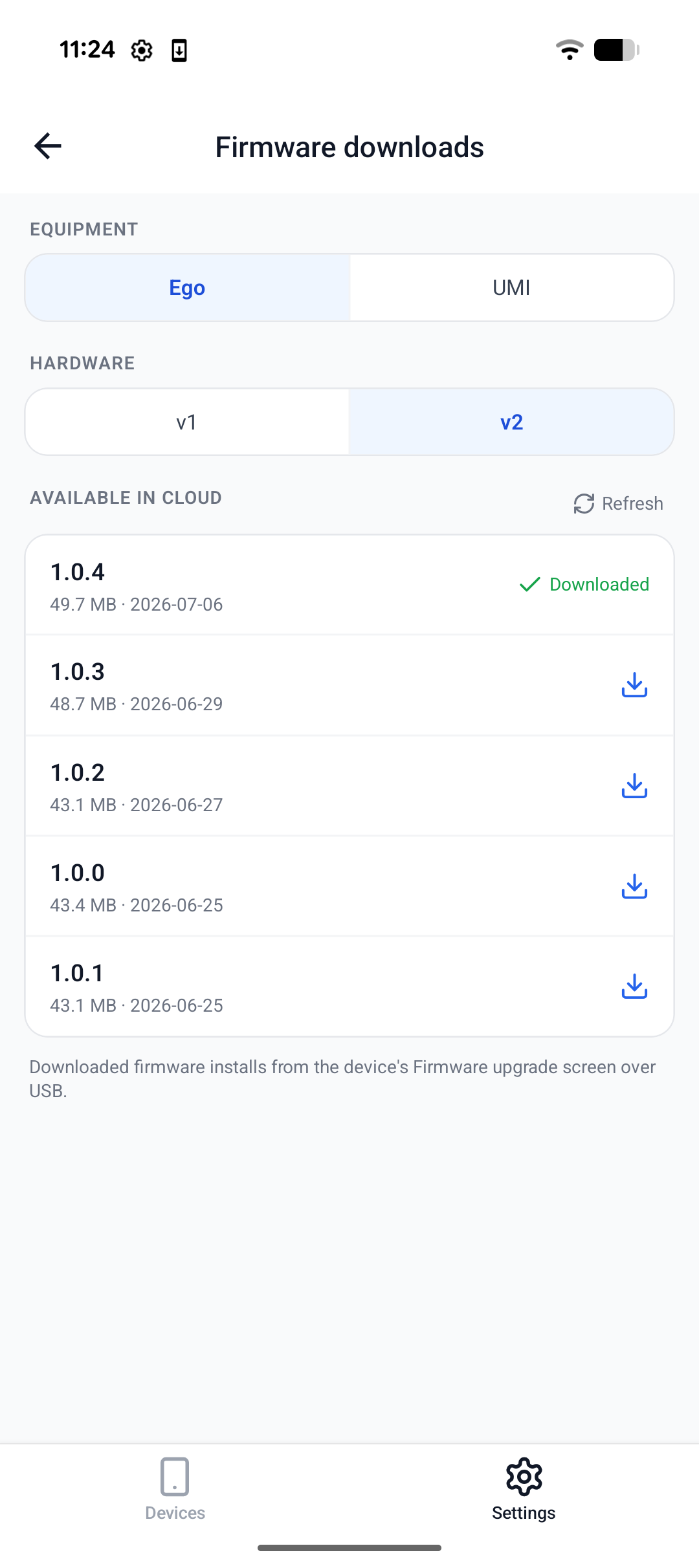
Make sure your phone is connected to the internet, then go to Settings → Firmware downloads.
Select Ego under Equipment, then pick your Hardware:
- EGO1 — the rolling-shutter headset
- EGO1GS — the global-shutter headset, with microphones and a speaker
Tap the download icon next to the version you want. Once it shows Downloaded, the firmware is stored on your phone and ready to install.
EGO1 and EGO1GS are different boards with different sensors, and each takes its own firmware. Installing the wrong image will not give you a working device.
If you're unsure which you have, check Device info → Hardware version: ego_v2 is EGO1,
audio_ego_v3 is EGO1GS. See EGO1/EGO1GS.
Step 2 — Install the firmware on the device
Connect the EGO device to your phone over its Wi-Fi hotspot or USB.
Devices running firmware older than 1.0.4 do not support the USB connection — connect over the Wi-Fi hotspot instead (see Visio Companion app for how to join it).
-
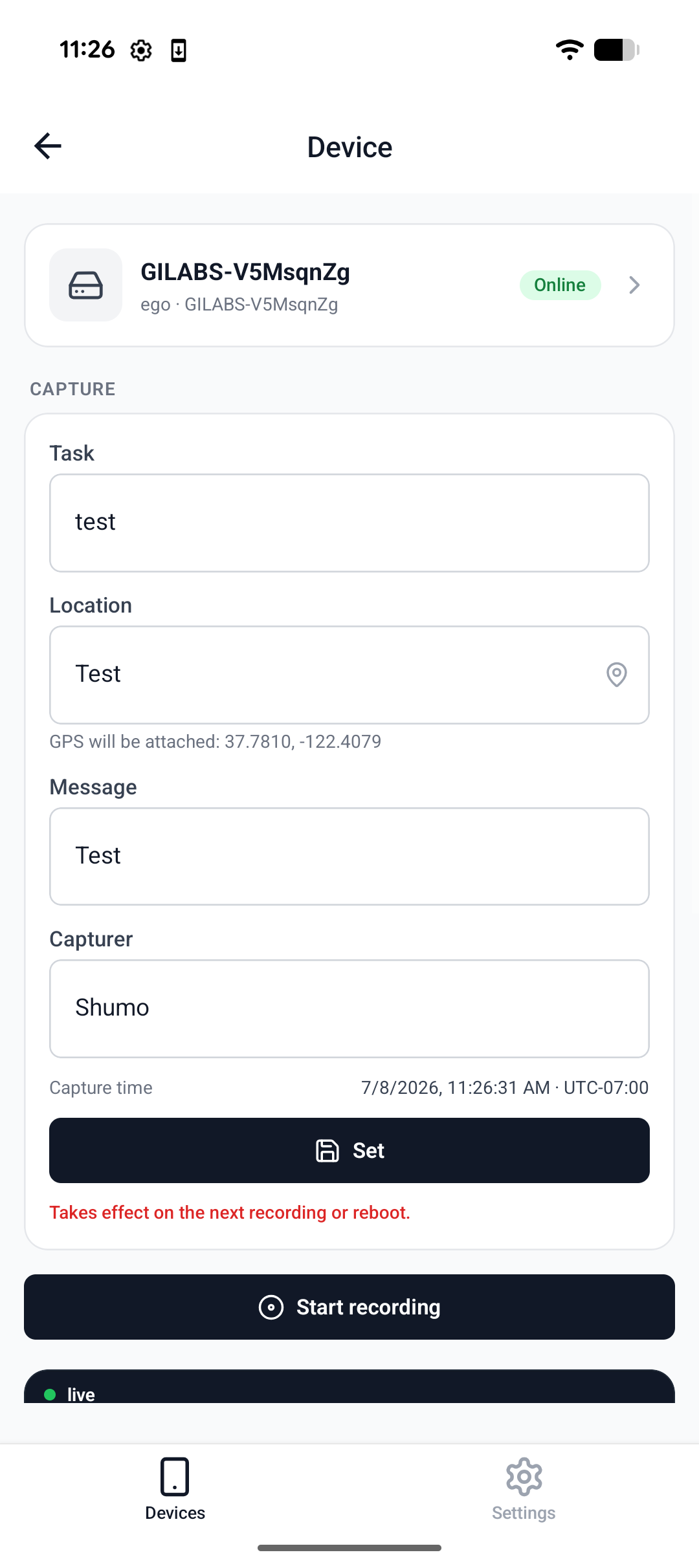
Go to the Devices tab and open your device:
-
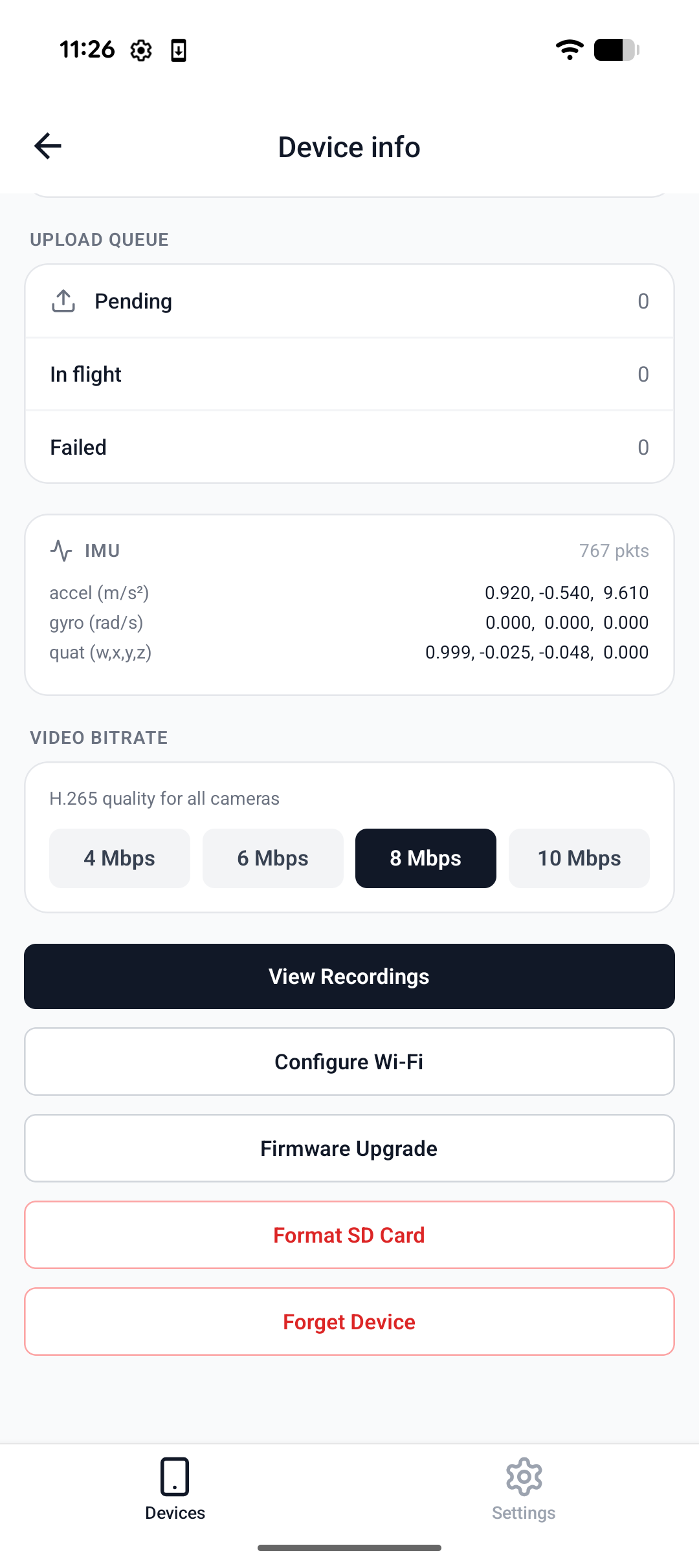
Tap the device card to open Device info, then tap Firmware Upgrade:
-
Choose the firmware you downloaded in Step 1 and tap Upgrade to selected:
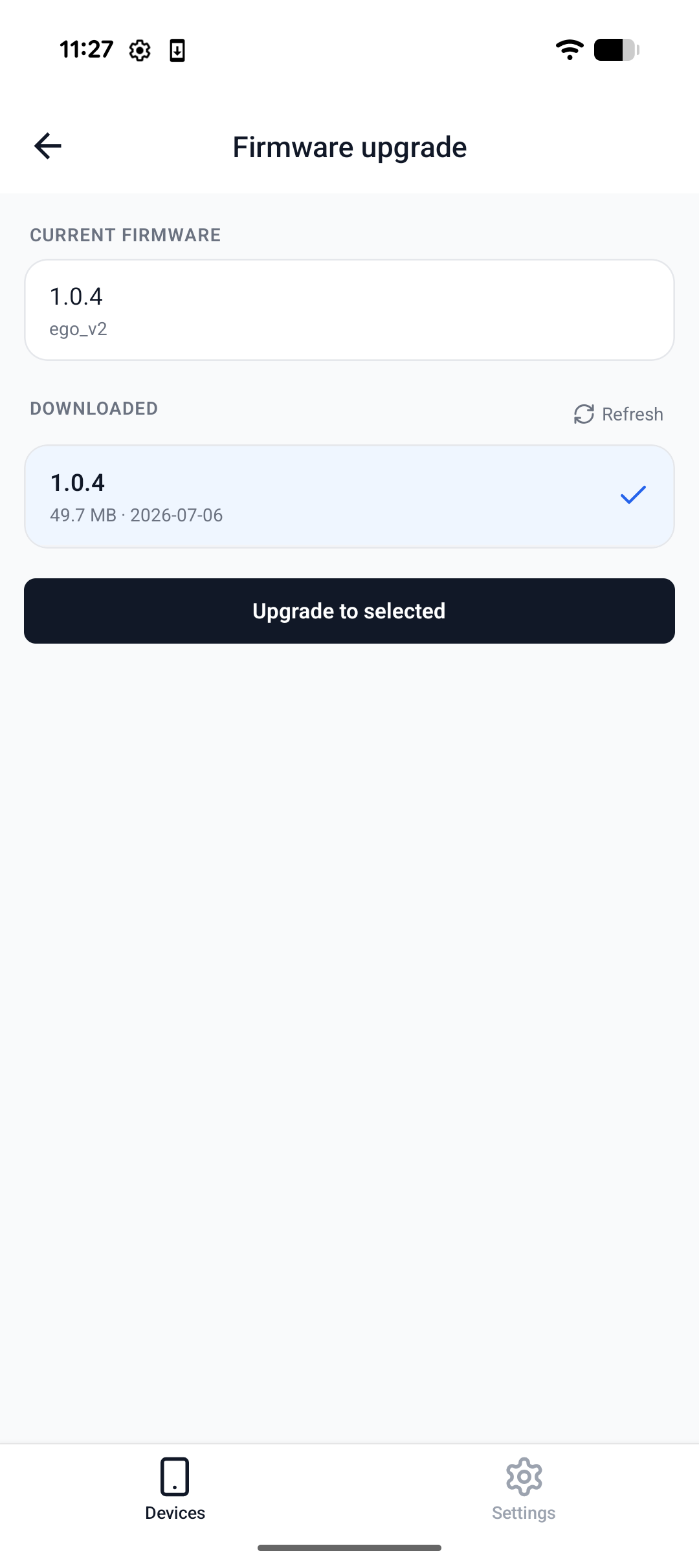
The device installs the firmware and reboots. When it comes back online, Current firmware at the top of this screen shows the new version.