9. Cloud upload & fleet status
This chapter is for whoever owns the cloud account and holds the keys. Field operators don't need it and can skip ahead.
The device can send data over Wi-Fi straight to your own object storage (Aliyun OSS or AWS S3, plus Tencent COS, Google Cloud Storage and Azure Blob on recent firmware). There are two independent channels; they share one set of credentials and either can be enabled on its own:
| Channel | What it uploads | Typical use |
|---|---|---|
| Recording upload | Finished .mcap recordings | Hands-off collection: the device sends them back while idle on internet-connected Wi-Fi; successful uploads are deleted from the SD card |
| Status reports | A small device-health record plus a low-resolution image | Check remotely that a device is online, pointed the right way, and its temperature and free space |
Credentials are stored on the device and in the app on this phone. The device, or the phone when recording locally or uploading recordings copied to it, talks directly to your bucket; data does not pass through GI Labs servers.
What you need to set up (overview)
Five things, all inside your own Aliyun account, done once. The setup script below does all of them in one run; to do it by hand, follow the "Where" column.
| Item | Purpose | Where |
|---|---|---|
| 1. A private bucket | Holds recordings and status files | Prepare storage → Create the bucket |
| 2. An upload key (RAM user + policy) | Device uploads; the app's Test button and cloud recordings list | Prepare storage → Create a key, Grant access |
| 3. A read-only key (RAM user + policy) | The status dashboard reads status files | Dashboard → Read-only key (dashboard only) |
| 4. A CORS rule | Lets the dashboard read the bucket from a browser | Dashboard → CORS (dashboard only) |
| 5. A lifecycle rule | Expires status files automatically so they don't pile up | FAQ → Cost and retention |
Afterwards, the app's Cloud upload page has seven values; Region is inferred from the endpoint:
| Field in the app | Example | Where it comes from |
|---|---|---|
| Endpoint URL | https://oss-cn-hangzhou.aliyuncs.com | The region endpoint of the bucket's region |
| Region | cn-hangzhou | The part after oss- in the endpoint |
| Bucket | my-recording-bucket | The bucket created in item 1 |
| Access key ID | LTAI… | Item 2's AccessKey ID |
| Secret access key | (shown once only) | Item 2's AccessKey Secret |
| Prefix | recordings/ | Your choice; must match the prefix in the policy |
| Status prefix | status/ | Keep the default |
If you only want the recordings and don't need the dashboard, skip items 3 and 4 and set up only 1 and 2.
Prepare storage on Aliyun OSS
Done once. If you already have a usable bucket and key, jump to Configure in the app.
The fast way: the setup script
Everything below (bucket, keys, policies, CORS, retention) is packaged in one script: you type the region and bucket name, it does the rest. It finishes by testing with the keys it just created: that the app's Test will pass, that a recording can upload, that the cloud recordings list can be listed, and that the dashboard can read status.
The script is oss_setup.py, in the public visio-schema repository
(tools/oss-setup; direct
file: oss_setup.py).
It uses only the Python 3.10+ standard library — nothing to install, no Aliyun CLI:
python oss_setup.py --region cn-hangzhou --bucket my-recording-bucket
Have an administrator AccessKey ready that can create buckets and RAM users; the script uses it for this run only and never writes it to disk. When it finishes it prints every value to enter in the app, plus the read-only key for the dashboard.
The script is safe to re-run: existing buckets, users and policies are left intact, and any lifecycle rules of
your own are preserved. Add --dry-run to see what it would do without doing it.
If you'd rather use the console, or only need to add permissions to an existing bucket, follow the three steps below.
Create the bucket
- Log in to Aliyun → Object Storage Service (OSS) → Buckets → Create Bucket.
- Choose a name (e.g.
my-recording-bucket) and the nearest region (e.g. "China (Hangzhou)"). - Set ACL to Private. Do not choose public-read, or anyone can download your data.
- Leave the rest at defaults and create it.
Write down these three values for the app:
| Field in the app | Example (Hangzhou) | Where to find it |
|---|---|---|
| Endpoint URL | https://oss-cn-hangzhou.aliyuncs.com | Bucket overview → the public endpoint, with https:// in front |
| Region | cn-hangzhou | The part after oss- in the endpoint |
| Bucket | my-recording-bucket | The name you just chose |
The two look alike in the console. The region endpoint is https://oss-cn-hangzhou.aliyuncs.com; the bucket
domain already contains the bucket name (my-recording-bucket.oss-cn-hangzhou.aliyuncs.com). The device
prepends the bucket name itself, so entering the bucket domain puts the name in twice and the hostname doesn't
resolve.
Two more that won't work: -internal endpoints (reachable only from inside Aliyun) and a bound custom domain
(CNAME). Use the standard oss-<region>.aliyuncs.com form.
Create a dedicated key (RAM user)
Do not use the root account's AccessKey. The device is hardware out in the field; if it is lost, a root key means the whole cloud account is compromised. Create a sub-account that can reach only this one bucket, with permissions narrowed in the next step.
- Aliyun console → Resource Access Management (RAM) → Users → Create User.
- Choose a logon name (e.g.
ego-device); under access mode tick OpenAPI access (no console password). - Save the AccessKey ID and AccessKey Secret immediately. The secret is shown once; close the page and it's gone.
Grant the user access
RAM → Policies → Create Policy → Script editor, paste the policy below (replace my-recording-bucket
with your bucket name), save, then go back to Users → your user → Add Permissions → pick this custom
policy.
{
  "Version": "1",
  "Statement": [
    {
      "Effect": "Allow",
      "Action": ["oss:PutObject"],
      "Resource": ["acs:oss:*:*:my-recording-bucket/*"]
    },
    {
      "Effect": "Allow",
      "Action": ["oss:ListObjects"],
      "Resource": ["acs:oss:*:*:my-recording-bucket"],
      "Condition": {
        "StringLike": { "oss:Prefix": ["recordings/*", "recordings/"] }
      }
    }
  ]
}
The upload key needs two permissions:
| Permission | Purpose |
|---|---|
| oss:PutObject | Upload recordings and status files from the device or phone. |
| oss:ListObjects | Both the app's Test button and Uploaded to cloud list, scoped to the recording prefix. |
Test checks listing, not writing. Neither permission grants reading recording contents or deleting cloud data. The device needs write access for uploads; the app needs list access for Test and the cloud list.
The recordings/ in the policy must match the Prefix entered in the app; change one and change the other. If
you leave the prefix empty (recordings at the bucket root), delete the whole Condition block.
If you use AWS S3: the same two permissions, in S3 terms — give the upload key s3:PutObject (upload) and
s3:ListBucket (this one covers both the app's Test and the cloud recordings list); give the dashboard key
s3:GetObject + s3:ListBucket, likewise restricted to the status prefix. Enter the endpoint as
https://s3.<region>.amazonaws.com. The setup script on this page supports Aliyun OSS only; for S3 set this up by
hand in IAM — the exact policy is under AWS S3 and other providers.
Configure in the app
In the app go to Device settings → Cloud upload. The page has three parts: the destination at the top (shared by both channels), then each channel's own prefix and switch.
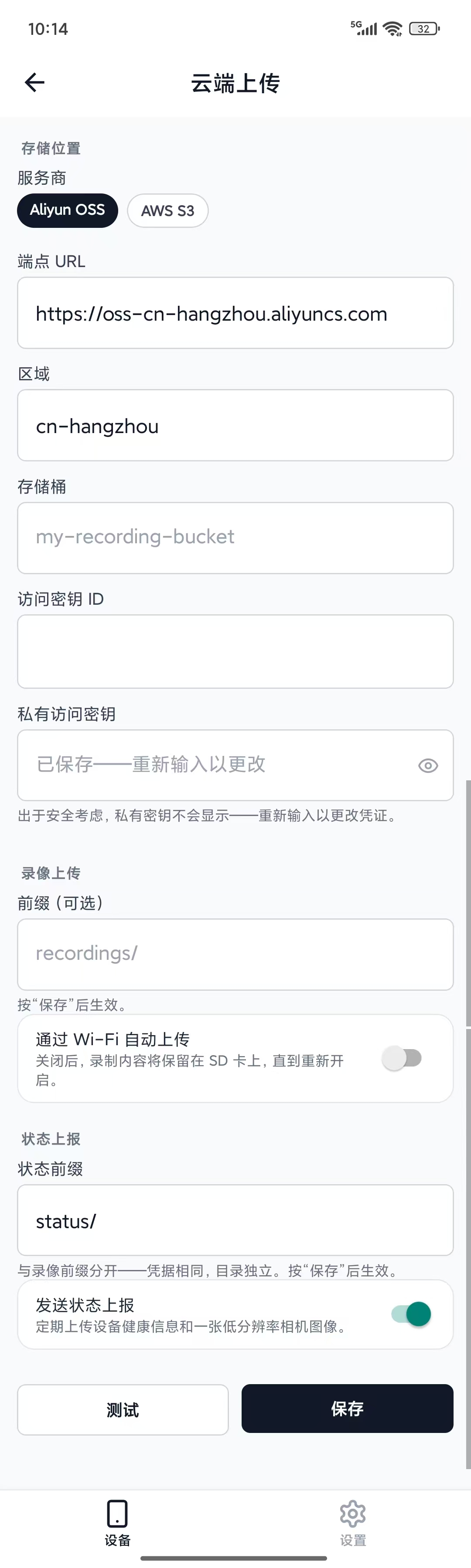
Destination
- Provider: Aliyun OSS, Tencent COS, AWS S3, Google Cloud Storage, or Azure Blob. The endpoint template
fills in; change the Aliyun default
oss-cn-beijingto your bucket region. - Enter Endpoint URL and Bucket; Region is inferred from the endpoint.
- Enter the key pair from the key step. For Aliyun the fields are AccessKey ID / AccessKey Secret; labels follow each provider's terminology.
Recording upload
- Prefix: the folder recordings go into, e.g.
recordings/. Empty means the bucket root. - Auto-upload over Wi-Fi: finished recordings upload oldest first while idle on internet-connected Wi-Fi. Upload pauses during recording and resumes after stopping. EGO1GS also pauses uploads when overheated and resumes after cooling. Successful uploads are deleted from the SD card. When off, recordings stay on the card.
Status reports
- Status prefix: the folder status data goes into, default
status/. Kept separate from the recordings prefix so retention and access can be set independently. - Send status reports: on by default. After credentials are saved and internet Wi-Fi is available, health reports are sent every 5 minutes. EGO1GS pauses reports when overheated and resumes after cooling; disable the switch if reports are not needed.
Finally tap Test, then Save. Test is unavailable while the phone is connected through the device hotspot. You can save directly; settings apply once the device joins internet-connected Wi-Fi. To test, connect over the same internet-connected Wi-Fi or USB.
The two switches take effect as soon as you flip them; the two prefix fields take effect on Save. The secret access key is never shown again for security — "Saved — re-enter to change" means the device already holds a key; if you only want to change a prefix you don't need to re-enter it.
Device status dashboard
With status reports on (the default), devices write small JSON files at
status/YYYY-MM-DD/HH/mmss-deviceID.json using UTC. GI Labs
provides a single-file web dashboard that reads those files and shows the whole fleet on one page.
What a status report contains
| Field | Contents |
|---|---|
| Device and firmware | Device code (GILABS-XXXXXXXX), model, firmware version, uptime |
| Recording | Whether recording, current session name |
| Storage | SD card free percentage, whether no card is inserted |
| Temperature | SoC temperature, each camera's temperature |
| Network | Wi-Fi state, SSID, IP |
| Upload | Pending / in-flight / failed counts |
| Picture | One 640×360 camera snapshot |
The privacy default for the picture: the device attaches a snapshot only while recording; when idle it reports health numbers only, and the dashboard shows "idle" with no picture. This is the conservative default for a head-worn device. If you need snapshots while idle too, talk to us — that should be a deliberate decision, not a switch flipped in passing.
If you used the setup script, the CORS rule and the read-only key below are already in place — jump to Open the dashboard.
Allow browser access to the bucket (CORS)
The dashboard reads the bucket from your browser. Browsers enforce a rule: a web page may read data from another domain only if that domain agrees first — the rule is called CORS. So the bucket needs one rule (set once).
Console path: Bucket → Access Control → CORS → create a rule. Or from the command line:
cat > cors.xml <<'EOF'
<?xml version="1.0" encoding="UTF-8"?>
<CORSConfiguration>
  <CORSRule>
    <AllowedOrigin>null</AllowedOrigin>
    <AllowedMethod>GET</AllowedMethod>
    <AllowedMethod>HEAD</AllowedMethod>
    <AllowedHeader>*</AllowedHeader>
    <ExposeHeader>ETag</ExposeHeader>
    <ExposeHeader>Date</ExposeHeader>
  </CORSRule>
</CORSConfiguration>
EOF
aliyun oss cors --method put oss://my-recording-bucket cors.xml
Why the origin is null: a local web page opened by double-clicking reports the literal origin null. This
rule does not expose your data to anyone — every request must still be signed with a key, and the bucket stays
private; CORS only decides which web page may read the response, and the key is what guards the door. If you later
host the dashboard at a fixed URL, replacing null with that URL is stricter.
A read-only key for the dashboard
Do not put the device upload key into a browser. Create another RAM user as above and grant it read access to the status folder only:
{
  "Version": "1",
  "Statement": [
    {
      "Effect": "Allow",
      "Action": ["oss:GetObject"],
      "Resource": ["acs:oss:*:*:my-recording-bucket/status/*"]
    },
    {
      "Effect": "Allow",
      "Action": ["oss:ListObjects"],
      "Resource": ["acs:oss:*:*:my-recording-bucket"],
      "Condition": { "StringLike": { "oss:Prefix": ["status/*", "status/"] } }
    }
  ]
}
The two entries: oss:GetObject lets the dashboard read the status files; oss:ListObjects lets it list which ones exist. Both are confined to the status prefix, so this key cannot read recordings and cannot write or delete anything — it is safe to enter in a browser.
If you changed the status prefix to another folder, change both status/ entries above to match.
Open the dashboard
- Get the dashboard file
index.html— in the publicvisio-schemarepository under tools/fleet-status (direct file: index.html); GI Labs can also send it to you. The dashboard currently supports Aliyun OSS and AWS S3. - Double-click to open it. Nothing to install, no online service.
- In the settings panel enter: endpoint URL, region, bucket, status prefix (default
status/), and the read-only key from the previous step. - Click Test, then Connect. Credentials are stored in this computer's browser; the file itself contains no keys and can be shared with colleagues.
Reading the dashboard
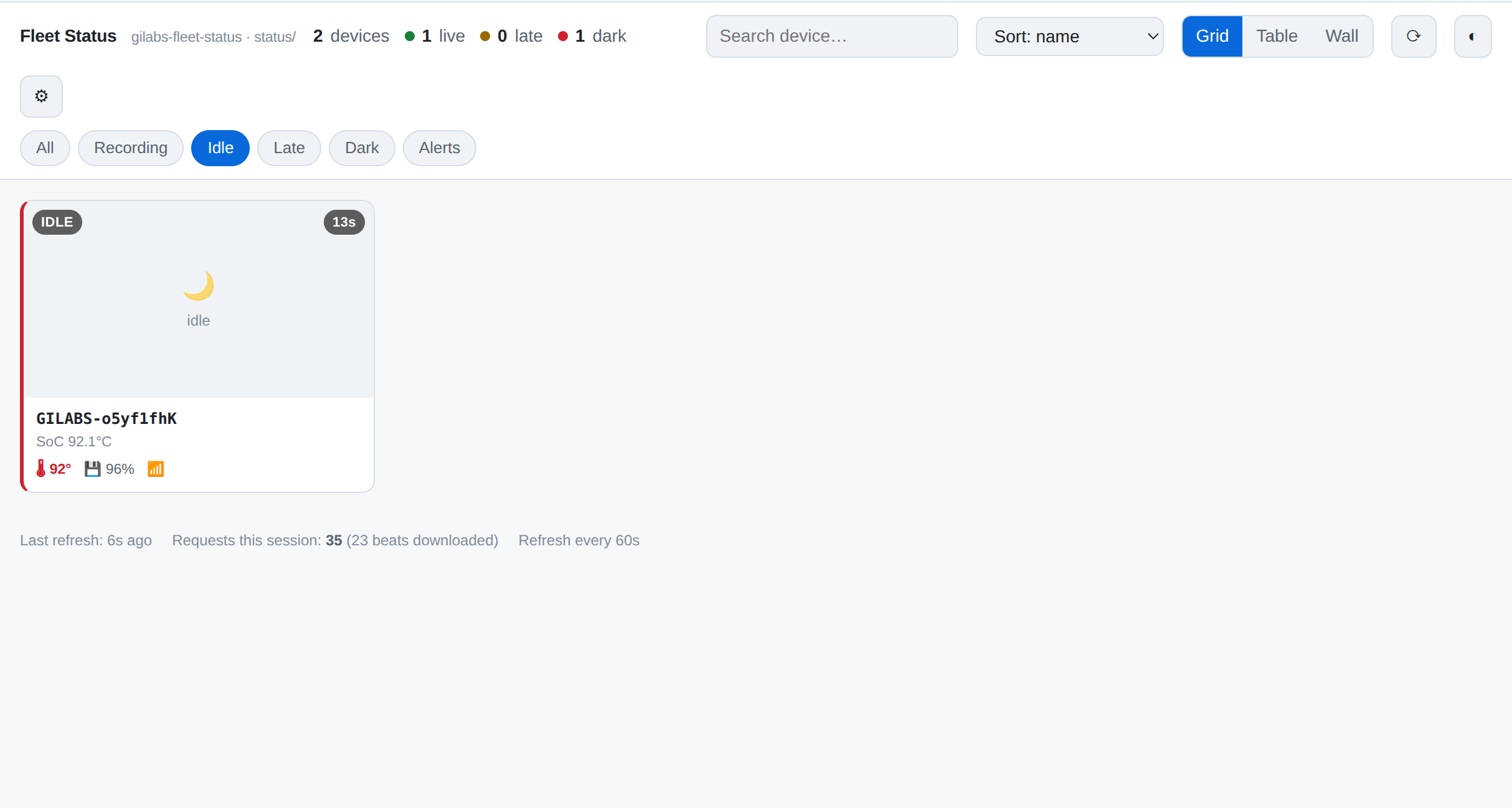
- Counters at the top: total devices, and how many are live (healthy) / late / dark (lost).
- Cards: thumbnail, REC (recording) or IDLE at the top left, time since the last report at the top right; below, the device code and its temperature / free space / Wi-Fi.
- Color bar on the left and red numbers: green = fine, yellow = late, red = lost or alarm. Alarms trigger on high SoC temperature, low SD free space, any failed upload, or an unsynced device clock.
- "Late" is relative to each device's own reporting interval: a device reporting every 5 minutes and one reporting every minute are not judged by the same absolute delay.
- Views: Grid (card wall) / Table (better for many devices) / Wall (large tiles, for a monitor on the wall).
A device that has reported before but has recently gone silent stays on the page as dark — it does not disappear, because a device dropping offline is exactly what you need to see.
FAQ
| Symptom | Cause and fix |
|---|---|
| Test in the app says Access denied (HTTP 403) | Check oss:ListObjects, the policy prefix against the app prefix, credentials, region, and endpoint. The setup script rules out this whole class of problems in one run. |
| Test in the app can't connect | On the device's own hotspot the device has no internet; put the device on a Wi-Fi with internet access and test again. |
| Hostname can't be resolved / server not found | The endpoint was entered as the bucket domain (which already contains the bucket name), or as an -internal endpoint or a custom domain. See the note under Create the bucket. |
| Test passes but recordings never upload | The key lacks oss:PutObject — Test checks listing the recording prefix, not writing. Also check auto-upload, internet Wi-Fi, that recording has stopped, and that EGO1GS is not pausing uploads due to heat. |
| No Cloud recordings list in the app | The key lacks oss:ListObjects, or the prefix in the app differs from the prefix in the policy's Condition. |
| The dashboard reports a network / CORS error | The bucket has no CORS rule yet (see the CORS step), or the rule doesn't include the null origin. |
| The dashboard reports 403 | Wrong key, region or bucket; or you entered the write-only upload key — the dashboard needs read access. |
| The dashboard shows no devices at all | The status prefix differs from the one in the app; or no device has reported yet (every 5 minutes by default). |
| A card has numbers but no picture | Normal. Snapshots are taken only while recording; idle devices show "idle". |
| A device stays dark | Check power, Wi-Fi, credentials, and whether status reports are enabled. EGO1GS thermal protection may temporarily cause late / dark status until cooling. |
Cost and retention
Status files are tiny (a few hundred bytes to a few tens of KB). At the default 5-minute interval each device writes about 288 files a day; the cost is dominated by request count and is very low. But the number of files grows forever, so give the status prefix its own lifecycle rule: recordings are for keeping, status data is not.
Console path: Bucket → Data Management → Lifecycle → create a rule with these three settings:
| Setting | Value |
|---|---|
| Scope / prefix | status/ (the same as the status prefix in the app) |
| Status | Enabled |
| Expiration | Delete 30 days after last modification (adjust as needed) |
The scope must be limited to the status prefix. A rule with an empty prefix applies to the whole bucket and deletes your recordings with it.
Under the hood
AWS S3 and other providers
For AWS S3, this is the device key's policy. Substitute your bucket name and prefix:
{
  "Version": "2012-10-17",
  "Statement": [
    {
      "Sid": "DeviceUploads",
      "Effect": "Allow",
      "Action": "s3:PutObject",
      "Resource": "arn:aws:s3:::my-recording-bucket/*"
    },
    {
      "Sid": "ListRecordingsPrefix",
      "Effect": "Allow",
      "Action": "s3:ListBucket",
      "Resource": "arn:aws:s3:::my-recording-bucket",
      "Condition": {
        "StringLike": { "s3:prefix": ["recordings/*", "recordings/"] }
      }
    }
  ]
}
A dashboard key gets s3:GetObject on <bucket>/status/* and s3:ListBucket conditioned to status/. No delete
permission is ever required or requested — nothing in the system deletes from your bucket.
| Provider | Endpoint (example region) | Since |
|---|---|---|
| Aliyun OSS | https://oss-cn-hangzhou.aliyuncs.com | — |
| AWS S3 | https://s3.us-east-1.amazonaws.com | — |
| Tencent COS | The region endpoint from the COS console | firmware 1.1.0 |
| Google Cloud Storage | As shown in the app for the provider | EGO1GS 1.1.3+ / EGO1 1.1.6 |
| Azure Blob | As shown in the app for the provider | EGO1GS 1.1.3+ / EGO1 1.1.6 |
Pick the provider in the app; since app 1.1.3 the fields are labeled with that provider's own terms (bucket / container, key, region), so you can copy from its console as-is. The device picks its request-signing scheme from the endpoint hostname, which is why a custom CNAME in front of an OSS bucket fails: it is signed as if it were S3 and the bucket rejects it.
The list condition is the one place these two settings have to agree. If the policy allows listing recordings/
but the device's Prefix field is blank, the device lists the bucket root, which a prefix-scoped key denies,
and the cloud recordings list fails with AccessDenied even though uploads work. Set the prefix the key was issued
for.
How upload works
- A recording finishes and is finalized on the SD card.
- The device uploads finished recordings oldest first, while idle on internet-connected Wi-Fi. Recording and EGO1GS thermal protection pause uploads; they resume after stopping or cooling.
- On success, the local copy is removed to free the card.
- Only finished recordings upload. A part is uploadable only once it has been closed with the MCAP end-of-file marker; the part being written is skipped until complete. A capture in progress is never half-shipped.
- Long recordings become several objects. Capture is written in 256 MB parts, each uploading independently once recording has stopped; uploads pause while recording. Each part is uploaded in a single request (no multipart), which is why the part size is 256 MB.
- A completion marker follows. Since firmware 1.1.0, once every part of a session has uploaded the device
writes the session's
session.jsonto the bucket as a completion marker, so "is this session fully uploaded?" is a single check. - The queue survives reboots and firmware upgrades; an interrupted upload resumes where it left off.
- Failures retry with a widening backoff, from about a second up to five minutes between attempts; after 12 attempts a part shows as Failed. Saving corrected credentials resets failed items so they retry immediately.
- Uploads never overwrite. Keys are unique by construction, and on Aliyun OSS the device also sends a forbid-overwrite header on every PUT.
Where the files land
<prefix>/<device-serial>/<session>-<start-time>/<part>.mcap
<prefix>/<device-serial>/<session>-<start-time>/session.json      (written last, when all parts are up)
For example:
recordings/26887a068c4e93f0/session_00042-1784017895/ego_0000.mcap
recordings/26887a068c4e93f0/session_00042-1784017895/ego_0001.mcap
recordings/26887a068c4e93f0/session_00042-1784017895/session.json
<device-serial>is the 16-character device serial, also shown in the app under Device info.<session>-<start-time>is the session counter plus its start time as a Unix timestamp. The timestamp keeps the key unique: session counters restart when a card is swapped or formatted.- The task, location, capturer and message you set before recording are also written inside the MCAP itself.
Status reports land in a separate, time-partitioned tree — status/<date>/<hour>/<time>-<serial>.json — which is
why they want their own prefix and their own lifecycle rule.
Monitoring in the app
On the device screen, the Upload queue shows three counters: Pending, In flight and Failed. In the recordings list each session carries a badge — Uploading, Uploaded, or Upload failed — and a session with several parts shows the worst state among them, so one stuck part is visible rather than averaged away. The Uploaded to cloud list is your phone talking to your bucket, not to the device, so it needs the phone to have internet: on the device hotspot it can't load.
Troubleshooting reference
The device turns the service's own error code into a specific message rather than a generic failure, so read what
Test says — AccessDenied, SignatureDoesNotMatch and InvalidAccessKeyId are all HTTP 403 and mean three
different things.
| Symptom | What it means and what to do |
|---|---|
| Test fails: access denied | Check ListObjects (OSS) / ListBucket (S3) and the allowed recording prefix — Test needs list access. Then check the region and endpoint. |
| Test fails: signature rejected | The secret key or the endpoint is wrong — not the policy. Re-enter the secret in full (a trailing space from a paste is the usual cause) and use the provider's real endpoint, not a CNAME. |
| Test fails: access key not recognised | The access key ID is wrong or the key was deleted. Re-enter the ID. |
| Test fails: endpoint redirected | The bucket lives in a different region. A signed request can't follow a redirect, so point the endpoint at the region the error names. |
| Test fails: bucket not found | The bucket name is wrong, or it was never created. |
| Test is unavailable | You're on the device's setup hotspot — no internet. Save anyway, then test once the device is on Wi-Fi; the credentials apply as soon as it has a real network. |
| Cloud recordings list fails with access denied | The device listed the bucket root or a prefix the key isn't scoped to. Set the Prefix the key was issued for, trailing slash included. |
| Nothing uploads, queue shows Pending | The device isn't on a network with internet access. Check Device info → Wi-Fi; if it reads AP fallback, it's on its own hotspot and uploads are paused by design. |
| Everything shows Upload failed | Almost always credentials or permissions. Fix them and re-save — saving a corrected destination resets failed items so they retry. |
| Queue grows and never drains | The uplink can't keep up with what you're recording. Compare your sustained upload bandwidth against ~16 Mbps at the default bitrate. |
| Uploads work but the card still fills up | Deleting after upload is what frees the card. A part that uploaded but couldn't be deleted is reported in the queue's last error. |
| A session is stuck Repairing | It was torn by a power cut mid-write. After a minute of no new bytes the device treats the part as dead, repairs it in place, and then uploads it. Stop recordings before removing power to avoid this. |
| Recordings upload, but the bucket list is empty | Put is working and list is not. The key is missing list permission on your recordings prefix — the two permissions fail independently. |
Device clock skew
The device has no NTP client. Its clock comes from its RTC at boot and is corrected when a phone connects. Both S3 and OSS reject any request signed more than 15 minutes from server time, so in principle a unit with a wrong clock could upload nothing. It handles this itself: every response from the bucket carries the server's time, so the device learns the true time from the first rejection and signs correctly from then on — the first request after a cold boot with a dead RTC fails, the retry succeeds. The correction applies to request signing only and is not written back to the system clock, so a device that has never been contacted by a phone can upload perfectly while writing recordings stamped 1970. If the timestamps inside your MCAP files matter, connect the app to each unit once after it is deployed. See 7.2 Timestamps & Unix time.
Captive portals
The device joins Wi-Fi with a network name and a passphrase, and nothing else. It cannot get through a captive portal — the guest-Wi-Fi splash page that wants a click-through, a room number or a browser login — nor an enterprise (802.1X) network that asks for a username. The device associates and gets an IP, so it looks connected in the app, but every upload fails because the portal intercepts it. Use a WPA2/WPA3 network with a pre-shared key, a dedicated IoT SSID, or a phone hotspot. If the site only offers portal Wi-Fi, use the SD card or USB instead — see 5. Retrieve data & view in Foxglove.
Bitrate vs uplink
At the default 8 Mbps per camera a recording device produces roughly 16 Mbps of video. If you record more or less continuously with auto-upload on, the site's upload bandwidth has to beat that sustained, or the queue grows for as long as you keep recording and the card fills behind it. Give the fleet uplink headroom, lower the bitrate (see 4. Phone app & web preview → Device settings), or plan on the queue draining after hours.
Uploads pause during recording: capacity planning must include enough idle time to drain the queue; comparing instantaneous bitrate and uplink alone is insufficient.