7. Engineering integration & data format
This chapter is for engineers who need to connect to the data stream or parse recordings directly in Python. It uses the command line. If you only want to capture and review recordings, chapters 1 to 6 have everything you need.
Data streams
EGO data is recorded in standard MCAP (Foxglove-native, self-describing, message schemas embedded in the
file) and can be parsed with the open-source visio-schema Python package. The same data is reachable over
several channels:
| Channel | Form | Use |
|---|---|---|
| USB serial | COMx on Windows, /dev/ttyACM0 on Linux | Direct connection, lowest latency |
| TCP | 192.168.4.1:50001 over the device hotspot | Connection through the hotspot |
| File (MCAP) | The .mcap files on the SD card | Offline analysis |
| TCP (shared Wi-Fi) | GILABS-XXXXXXXX.local:50001 | Computer and device on the same Wi-Fi |
| USB networking | GILABS-XXXXXXXX.local:50001, firmware 1.1.6+ | High-speed connection without Wi-Fi |
| USB storage (MTP) | Visio Storage on the connected computer | Copy / delete SD recordings without removing the card |
Recorded channels
| Topic | Schema | Contents |
|---|---|---|
/ego/camera/0 | foxglove.CompressedVideo | Right eye, H.265 (cam0 = right eye = coordinate anchor) |
/ego/camera/1 | foxglove.CompressedVideo | Left eye, H.265 |
/ego/camera/0/intrinsics | foxglove.CameraCalibration | Right-eye intrinsics |
/ego/camera/1/intrinsics | foxglove.CameraCalibration | Left-eye intrinsics |
/ego/camera/1/extrinsics | foxglove.FrameTransform | Pose of the left eye relative to the right eye (cam0 is anchor) |
/ego/imu/0/raw | visio_schema.v1.sensor.ImuRaw | Raw IMU samples (batched) |
/ego/imu/0/quat | visio_schema.v1.ros.geometry_msgs.Quaternion | Fused orientation quaternion |
/ego/imu/0/extrinsics | foxglove.FrameTransform | Pose of the IMU relative to the right eye (cam0) |
/ego/imu/0/info | visio_schema.v1.calibration.ImuCalibration | Camera–IMU time offset and nominal IMU defaults |
/ego/audio/0 | foxglove.RawAudio | Stereo audio (PCM S16, 16 kHz) — EGO1GS only |
/ego/camera/0/annotations | foxglove.ImageAnnotations | Hand-detection boxes — EGO1GS only, when enabled |
/ego/system_health | visio_schema.v1.sensor.SystemHealth | CPU / disk / client count, plus wall-clock time |
/ego/command_result | visio_schema.v1.control.CommandResult | Result of a control command |
/device_info | visio_schema.v1.service.device_info.DeviceInfo | Device identifiers and info |
Since firmware 1.1.6, /ego/camera/0/frame_info and /ego/camera/1/frame_info carry
visio_schema…sensor.CameraFrameInfo: exposure duration, exposure midpoint offset, gain, and row-readout timing.
Their timestamps match the corresponding eye's video frames. Foxglove can inspect them directly; Python decoding
requires a visio-schema newer than 0.9.1. Internal topics such as /ego/diag_log may also appear; filter by topic.
cam0 (the right eye) is the coordinate anchor. Every other camera and the IMU report their extrinsics relative to cam0. EGO1GS adds a stereo audio channel, and a hand-detection channel when the feature is switched on. In a typical session both cameras run at 30 fps; the IMU streams at 200 Hz on EGO1 and 400 Hz on EGO1GS, so read the rate from the data rather than assuming one.
Calibration topics repeat at about 1 Hz and are constant within a recording. See 7.3 Calibration data for what the values mean and 7.4 Channel & network reference for the quick-reference tables.
Install visio-schema
The supplied manual includes 0.9.1 and requires Python 3.10+. Install with the display and qr extras:
pip install 'visio-schema[display,qr]'
The [display] extra supplies Rerun, H.265 decoding, and the --serve console dependencies; [qr] generates
settings QR images. Installed commands are visio-display, visio-settings-qr, and visio-decrypt. Wheels and the source distribution are also on
GitHub Releases; to install from the
downloaded sdist instead:
pip install 'visio_schema-0.9.1.tar.gz[display,qr]'
visio-display command line
One data source plus at least one output:
# Live serial → MCAP recording (no UI)
visio-display --serial /dev/ttyACM0 --out capture.mcap

# Live TCP (device port 50001) → recording
visio-display --tcp 192.168.4.1:50001 --out capture.mcap

# Replay an MCAP into the Rerun viewer
visio-display --mcap-in capture.mcap --rerun

# Live stream → Foxglove WebSocket bridge
visio-display --tcp 192.168.4.1:50001 --foxglove
Common options: --serial PORT / --tcp HOST[:PORT] / --mcap-in FILE / --serve (pick one; --serve opens the local console);
--out FILE.mcap / --foxglove [--port 8765] / --rerun (outputs). --mcap-in supports only --out or
--rerun, not --foxglove. For encrypted files, add --key-file. The TCP port is 50001 — write it
explicitly. The full option list, including the local console and software decoding, is in
7.1 visio-display CLI.
Live stream in Foxglove Studio
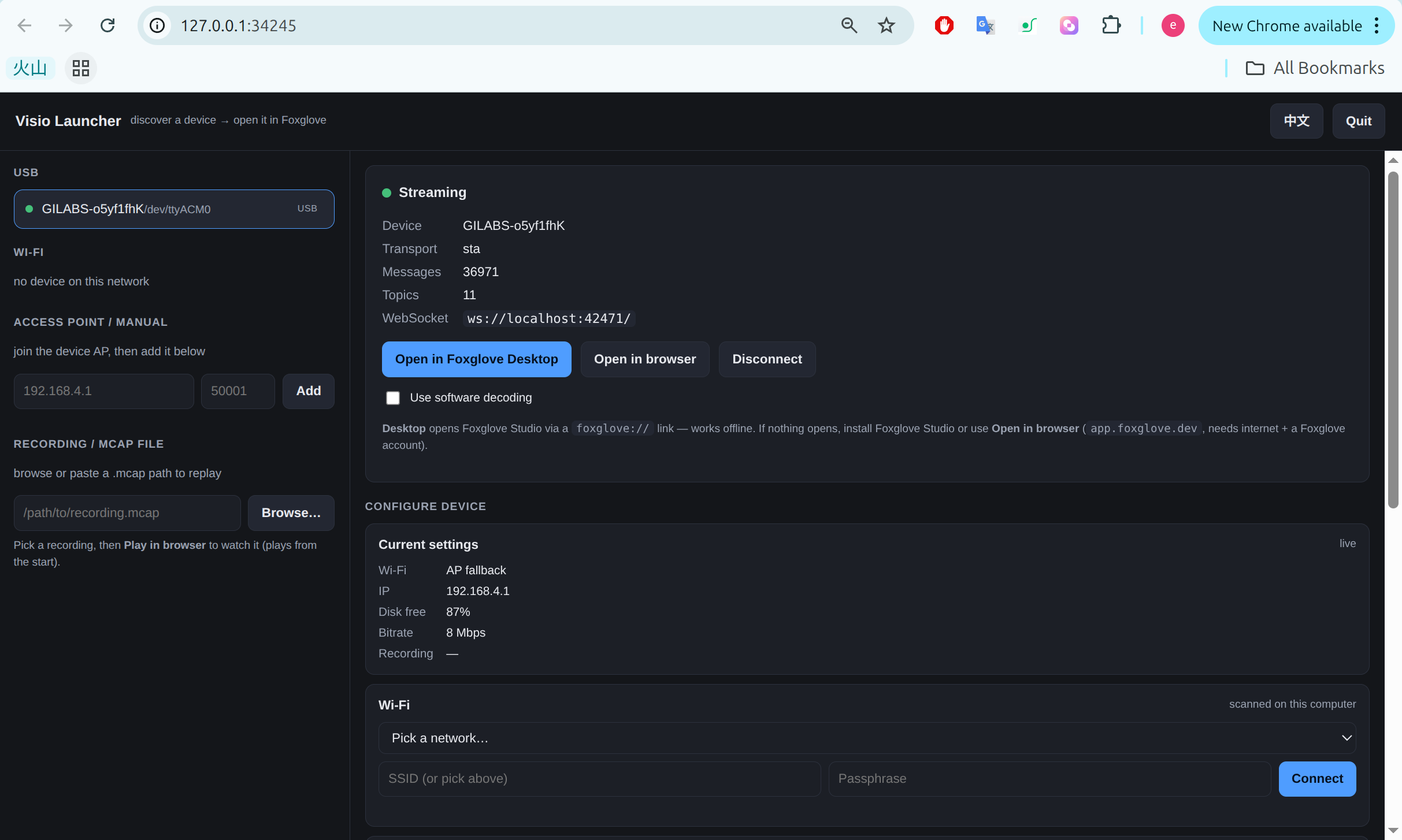
Foxglove Studio cannot connect to the device directly. Start a Foxglove WebSocket bridge with visio-display
first:
visio-display --tcp 192.168.4.1:50001 --foxglove
# Output: Foxglove WebSocket server on ws://localhost:8765
Then in Foxglove Studio: Open connection → Foxglove WebSocket → ws://localhost:8765. To view an
already-recorded file you don't need the bridge — File ▸ Open local file on the .mcap is enough after decrypting encrypted recordings with visio-decrypt (see
5. Retrieve data & view in Foxglove).
Read data in Python
from visio_schema import read_mcap, read_serial, message_class

# Read a recording: msg.payload is raw bytes; decode it with message_class by schema name
for msg, channel in read_mcap("capture.mcap"):
    if channel.topic == "/ego/imu/0/quat":
        quat = message_class(channel.schema_name)()
        quat.ParseFromString(msg.payload)
        print(quat)

# Or read the serial port live (same (msg, channel) pairs; payload is bytes and needs decoding)
for msg, channel in read_serial("/dev/ttyACM0"):
    ...
read_mcap automatically finds recording keys in ~/.config/visio/recording-keys.json or via
VISIO_RECORDING_KEY_FILE.
More of the stable API: serial_endpoint(path) (bidirectional, can send commands), McapWriter(path),
ChannelRegistry, message_class(schema_name). Message timestamps run on the device's monotonic clock — see
7.2 Timestamps & Unix time to convert them.
Network and ports
| Name | Value |
|---|---|
| Device hotspot SSID | GILABS-XXXXXXXX (open, no password) |
| Hotspot band | 5 GHz, falling back to 2.4 GHz when no 5 GHz channel is available |
| Hotspot gateway IP | 192.168.4.1 |
| Web preview (on the hotspot) | http://192.168.4.1 |
| Web preview (same Wi-Fi) | http://GILABS-XXXXXXXX.local |
| Data port | TCP 50001 |
| Foxglove bridge | ws://localhost:8765 (served by visio-display --foxglove) |
Glossary
- Egocentric capture — recording from the wearer's first-person point of view.
- MCAP — Foxglove's native recording container; message schemas travel inside the file.
- IMU — inertial measurement unit; on this device it tracks head pose.
- MTP — Media Transfer Protocol, used to access SD recordings over USB.
Attachments
The latest installers and the visio-display bundles for Windows, macOS and Linux are on GitHub Releases. Files the manual ships alongside this chapter:
- Visio Companion Android app — see 10. App release notes.
- Foxglove layout — Ego-Foxglove-Layout.json; import it in Foxglove with Layouts ▸ Import from file.
- visio-schema Python package — visio_schema-0.9.1.tar.gz, or
pip install.
Everything downloadable is listed on Downloads.
Under the hood
Sub-chapters
- 7.1 visio-display CLI — every source and output, the local console, software decoding, encrypted files.
- 7.2 Timestamps & Unix time — monotonic vs wall-clock time and how to convert.
- 7.3 Calibration data — what is calibrated per unit, what is not, and how a SLAM pipeline should consume it.
- 7.4 Channel & network reference — the quick-reference tables.
- 7.5 Hand-detection data — the annotations channel EGO1GS records.
- 7.6 Reading encrypted recordings — keys, the keychain file and
visio-decrypt.
USB recording since firmware 1.0.4
USB recording is fully supported on firmware 1.0.4 and later. On older firmware the USB link is power only — upgrade over the air, see 4. Phone app & web preview.