5. Retrieve data & view in Foxglove
Copy data to a computer
- Power off the device and remove the SD card.
- Connect the card to a computer with a card reader.
- Copy whole recording folders from data: each
session_NNNNN-…folder contains approximately 256 MBego_0000.mcap,ego_0001.mcap, … parts andsession.json, including after a power interruption. Copy the entire folder. Uploaded parts are replaced by small.mcap.uploadedmarkers; these can be ignored. Leave hidden folders indataunchanged.
Once you have copied the data and confirmed it is intact, delete the exported recordings from the card to free space for the next session.
You can also copy and delete recordings without removing the card: connect by USB and open Visio Storage. Windows and Linux can access it directly; macOS Finder cannot, so use an MTP tool such as OpenMTP.
Copy recordings to a phone
With firmware 1.1.6 + app 1.1.6, open Recordings → Device SD card → Copy to phone. Finished copies appear under This phone. You can also delete device recordings; the app tells you whether they were uploaded or copied.
- Use the device hotspot, shared Wi-Fi, or USB networking. Copying is unavailable over USB serial or Bluetooth.
- Stop recording first. Preview pauses while copying.
- For bulk export, use a card reader.
View recordings in Foxglove
There are two ways to open .mcap files in Foxglove; pick one:
- Desktop app (recommended): install Foxglove Studio (free) from foxglove.dev/download (Windows / macOS / Linux). H.265 playback depends on system decoding: macOS usually works directly; Windows needs the HEVC video extension (see below).
- Web app (no install): open app.foxglove.dev in a browser. It opens local
.mcapfiles and imports layouts without installing anything (see below).
Open the recording and import the layout
- Open the file: menu File ▸ Open local file → choose the
.mcapfile. - Import the layout (recommended): desktop app Layouts ▸ Import from file; web app Layouts ▸ Import Personal Layout (see below). Choose the bundled Ego-Foxglove-Layout.json and you get the preset panels in one step.
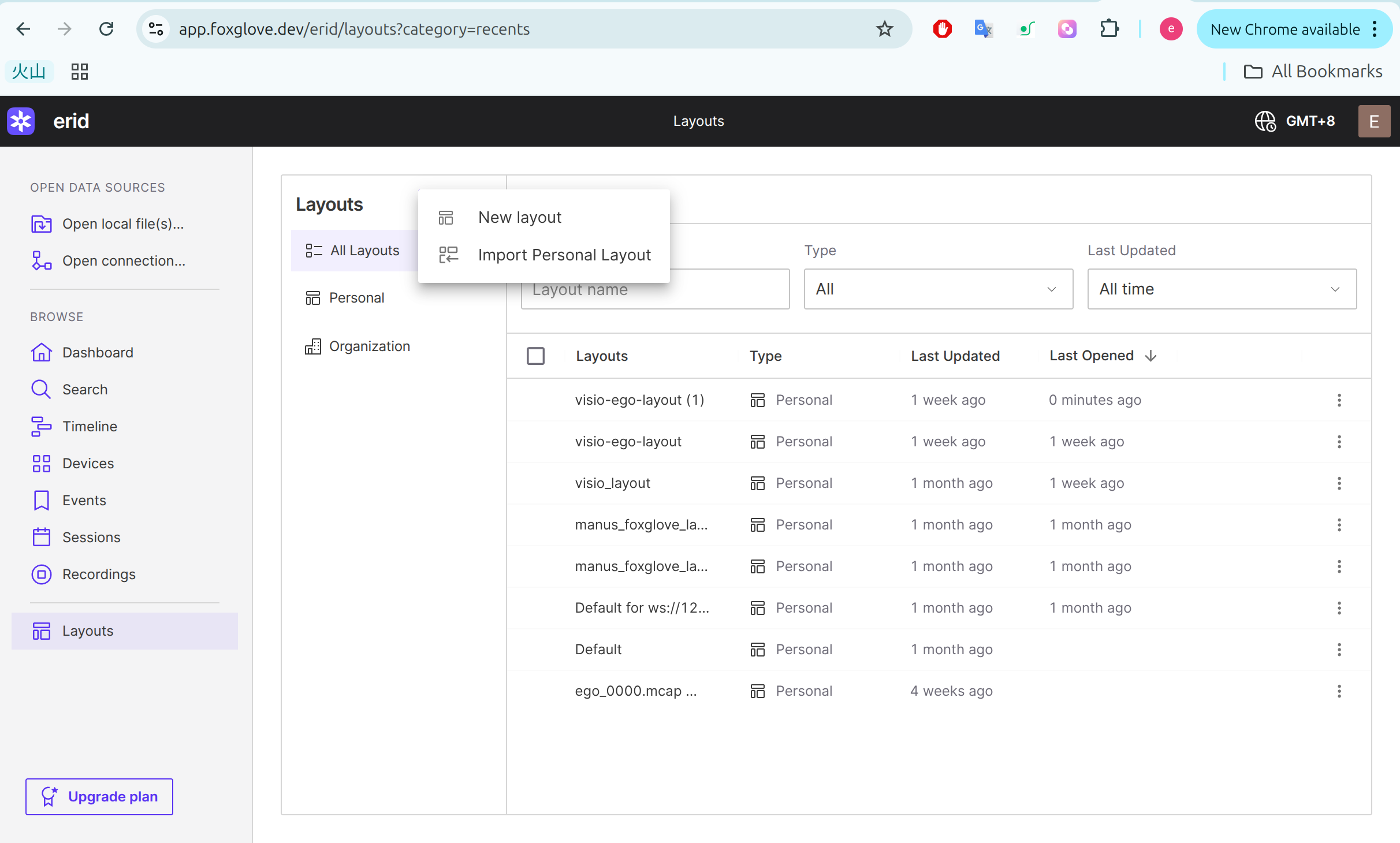
Layout file: Ego-Foxglove-Layout.json (also on Downloads).
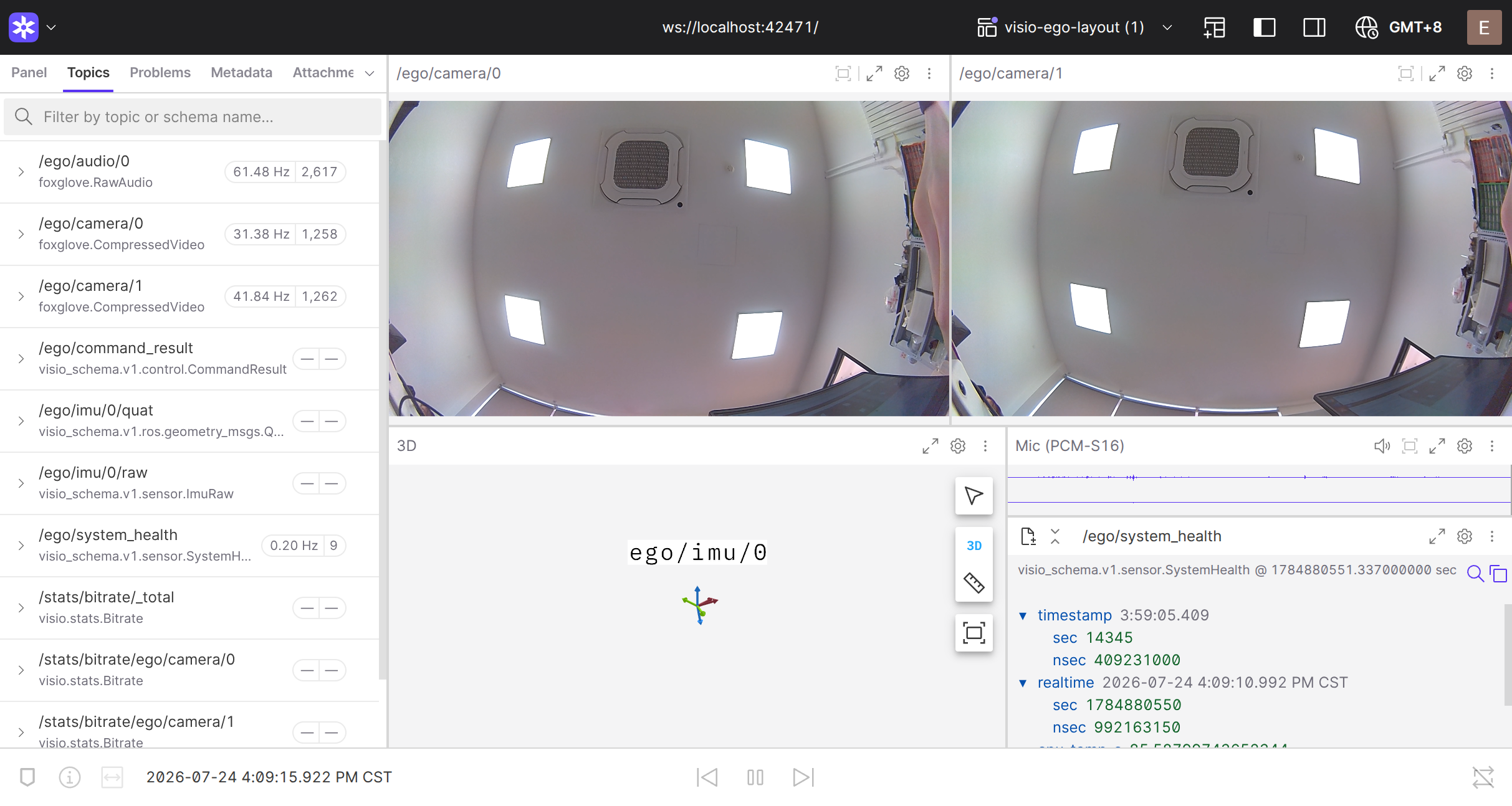
You will see stereo image panels and IMU plots (orientation quaternion, acceleration, angular velocity).
The layout's 3D pose panel works only with a live stream forwarded by visio-display and is empty when opening
a recording directly. EGO1GS recordings also contain stereo audio on /ego/audio/0; add an Audio panel to play it.
Live streams are covered in Engineering integration. Sessions are automatically
split into approximately 256 MB parts; open the part you need. For encrypted recordings, first create a plaintext
copy with visio-decrypt (see Recording encryption).
No video in the panel? H.265 decoding
If the stereo video panels show a red cross or stay black, the system usually lacks H.265 / HEVC decoding support (most common on Windows). Work through the following in order.
Install the HEVC extension (Windows)
Install the HEVC video extension from the Microsoft Store, then restart the Foxglove desktop app or reload the web app:
- Free (manufacturer edition, try first): HEVC Video Extensions from Device Manufacturer, apps.microsoft.com/detail/9n4wgh0z6vhq
- Paid: HEVC Video Extensions, apps.microsoft.com/detail/9nmzlz57r3t7
Use visio-display software decoding (any OS)
If the panel is still blank after installing the extension, or you are on macOS or Linux, open the .mcap with
visio-display and enable software decoding, which does not depend on the system's HEVC hardware decoder.
- Download and install: from the
visio-schema releases page, get the
visio-display-*.zipfor Windows, macOS, or Linux (the supplied manual uses v0.9.1). Unzip and runvisio-display(visio-display.appon macOS). These bundles are unsigned: on Windows use More info → Run anyway; on macOS right-click → Open. - Load the recording: under RECORDING / MCAP FILE on the left, Browse to the
.mcapfile. - Enable software decoding: tick Use software decoding, then click Play in browser (or Open in Foxglove Desktop). Software decoding transcodes on the computer and may play more slowly than real time.
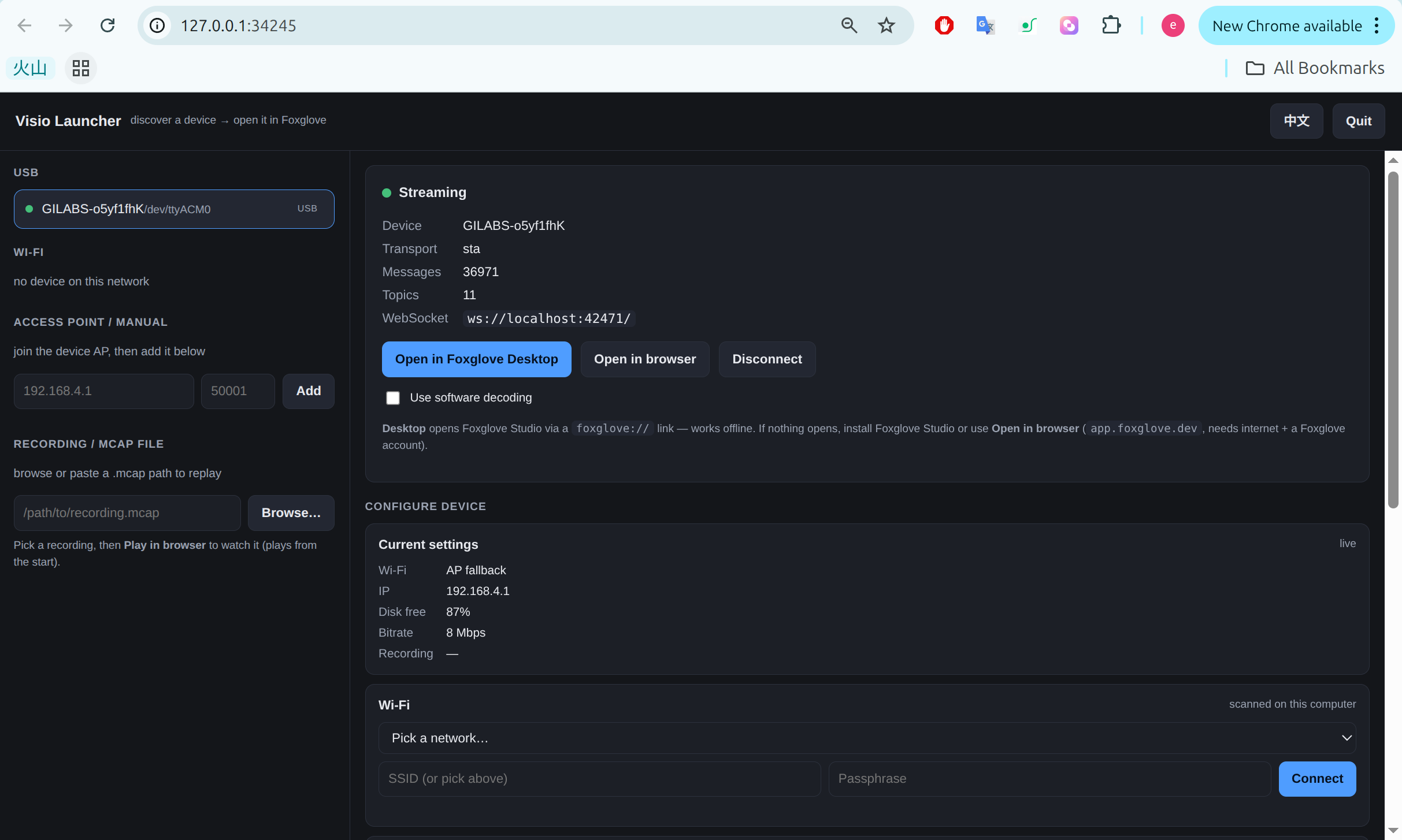
The three platform bundles are listed on Downloads.
Under the hood
Pull files over USB
Visio Storage exposes SD recordings over MTP, including copying and deleting recordings without removing the card. On macOS, use an MTP-capable tool such as OpenMTP rather than Finder. For a full card, a card reader is still the recommended bulk-export path. Phone copying has its own connection and recording restrictions, listed above.
Where do I see the live view?
| You want… | Use… |
|---|---|
| Live preview while capturing | The Visio Companion app or the device's web page, see Phone app & web preview. |
| To review an already-recorded file | Foxglove Studio or any MCAP viewer on your computer (this chapter). |
| A live stream on the computer | Engineering workflow, see visio-display CLI. |